> ## Documentation Index
> Fetch the complete documentation index at: https://docs.tokenlayer.network/llms.txt
> Use this file to discover all available pages before exploring further.
# MCP Server
> Connect Token Layer to AI assistants via Model Context Protocol
## What is the Token Layer MCP Server?
The Token Layer MCP (Model Context Protocol) server enables AI assistants like Claude, ChatGPT, Cursor, and Windsurf to interact directly with the Token Layer platform. This allows AI to:
* **Create and deploy tokens** on blockchain networks
* **Trade tokens** with automatic price quotes and execution
* **Search and discover** tokens across multiple chains
* **Execute blockchain transactions** on your behalf
## See It In Action
Watch how easy it is to integrate Thrust with your AI assistant:
## Why Use the MCP Server?
Trade tokens by simply describing what you want: "Buy 100 USDC worth of TOKEN" or "Sell half my holdings"
Launch tokens through conversation: "Create a meme coin called DogeCat with symbol DOGCAT"
Works with Claude Code, Claude Desktop, ChatGPT, Cursor, Windsurf, and any MCP-compatible client
Trade and create tokens across Ethereum, Base, BNB Chain and more
## Quick Start
Get started in minutes with your preferred AI assistant:
Add Thrust to Claude Code CLI with one command
Connect via Settings → Connectors
Add custom connector in ChatGPT settings
Configure MCP in your code editor
## Available Capabilities
The MCP server provides comprehensive tools for Token Layer integration:
### Token Operations
* **create\_token** - Deploy new tokens on Base or BNB networks with custom branding
* **search\_token** - Find tokens by name, symbol, or contract address
* **get\_tokens** - Browse trending, new, or popular tokens with filters
* **trade\_token** - Buy or sell tokens with automatic quote execution
* **quote\_trade\_token** - Get price quotes without executing trades
### Blockchain
* **execute\_transaction** - Send transactions on-chain with gas fee handling
## Security & Authentication
* **Non-custodial**: The MCP server uses your Thrust account but never stores private keys
* **OAuth 2.0**: Secure authentication flow when connecting
* **API Keys**: Bearer token authentication for programmatic access
* **Scoped Access**: Only performs actions you explicitly authorize
## How It Works
```mermaid theme={null}
graph LR
A[AI Assistant] -->|MCP Protocol| B[Token Layer MCP Server]
B -->|REST API| C[Token Layer Platform]
C -->|Blockchain RPC| D[Base/BNB Networks]
C -->|Database| E[Supabase]
```
1. **AI asks you** what you want to do
2. **AI calls MCP tools** with your request
3. **MCP server authenticates** with your credentials
4. **Actions execute** on Token Layer platform
5. **Results return** to AI for confirmation
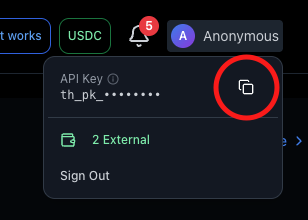
## Getting Your API Key
To connect the MCP server, you'll need an API key:
1. Visit [tokenlayer.network](https://tokenlayer.network)
2. Hover over your **profile avatar** in the header
3. Click to copy your **API key**
## Next Steps
Step-by-step setup for your AI assistant
Complete documentation of all available MCP tools
Ready-to-use prompts for common tasks
Direct API access for custom integrations
## Support
Need help with MCP server setup?
* Chat with us in the bottom right corner
 ## Next Steps