
Prerequisites
Before connecting the Token Layer MCP server, you’ll need:- A Token Layer account at tokenlayer.network
- Your API key (see Getting Your API Key)
- An MCP-compatible AI assistant (Claude Code, Claude Desktop, ChatGPT, Cursor, or Windsurf)
Getting Your API Key
1
Visit Token Layer Platform
Go to tokenlayer.network and sign in
2
Access Profile Menu
Hover over your profile avatar in the top-right header
3
Copy API Key
Click to copy your API key to clipboard
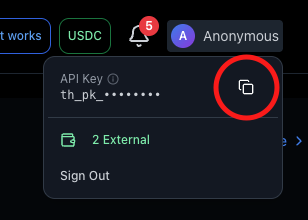
Keep your API key secure! It provides access to your Token Layer account and can execute transactions on your behalf.
Claude Code
Claude Code is Anthropic’s official CLI tool. Add Token Layer with a single command:1
Run Installation Command
Open your terminal and run:Replace
YOUR_API_KEY with your actual API key from tokenlayer.network2
Verify Installation
Start a new Claude Code session:Try: “Show me trending tokens on Token Layer”
Example Usage
Claude Desktop
Claude Desktop supports MCP through a visual connector interface:1
Open Settings
Launch Claude Desktop and click the Settings icon (gear) in the bottom-left
2
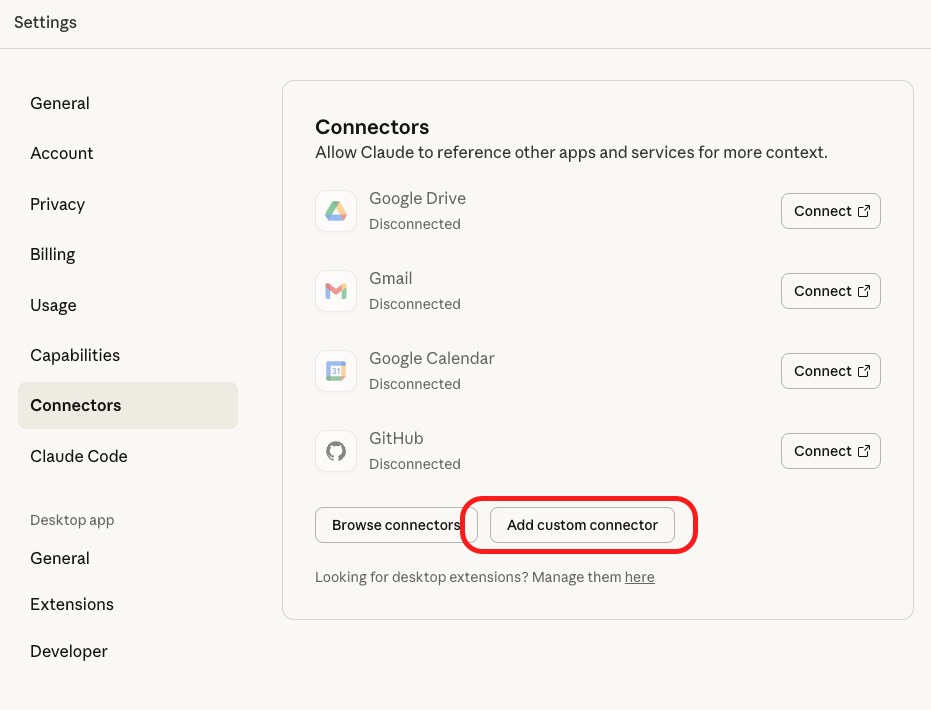
Navigate to Connectors
Select Connectors from the settings menu
3
Add Custom Connector
Click “Add Custom Connector”
4
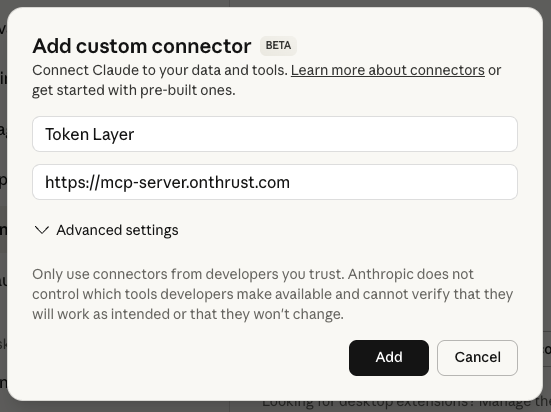
Enter Details
- Name:
Token Layer - URL:
https://mcp-server.onthrust.com
5
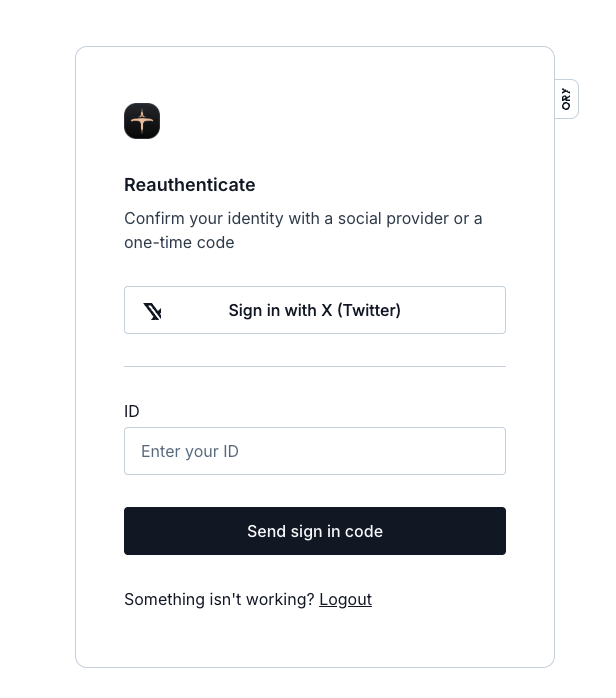
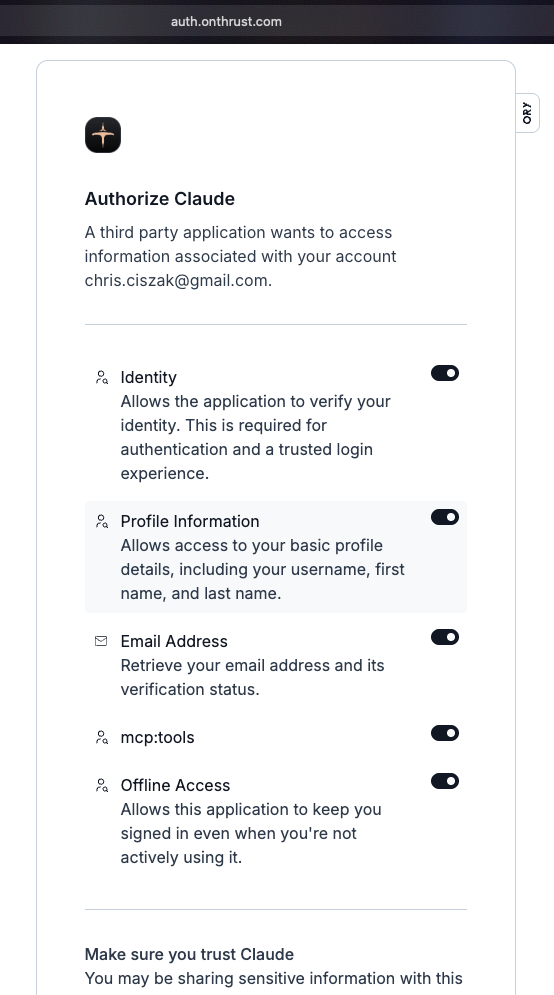
Authenticate
You’ll be redirected to authenticate with your Token Layer account
6
Authorize
Review the permissions and click “Authorize” to grant access
Visual Guide

ChatGPT
ChatGPT supports custom MCP connectors through a similar interface:1
Open Settings
In ChatGPT, click your profile icon and select Settings
2
Navigate to Connectors
Go to Settings → Connectors
3
Add Custom Connector
Click “Add Custom Connector”
4
Configure
- Name:
Token Layer - URL:
https://mcp-server.onthrust.com
5
Complete OAuth Flow
Authenticate and authorize access (same as Claude Desktop)
The OAuth flow for ChatGPT is identical to Claude Desktop - you’ll authenticate with Token Layer and authorize the connection.
Cursor & Windsurf
Cursor and Windsurf are AI-powered code editors with MCP support:Configuration
1
Open MCP Settings
In Cursor/Windsurf, open settings and navigate to MCP Servers or Connectors
2
Add Server Configuration
Add a new MCP server with these details:
3
Reload Editor
Restart Cursor/Windsurf to apply the configuration
4
Test Connection
Ask the AI: “What are the trending tokens on Token Layer?”
Alternative: Config File
You can also add the MCP server via config file:Testing Your Connection
Once connected, try these commands to verify everything works:Troubleshooting
Authentication Failed
Authentication Failed
- Verify your API key is correct
- Check that you copied the full key without extra spaces
- Try generating a new API key from tokenlayer.network
Connection Timeout
Connection Timeout
- Ensure you have internet connectivity
- Check if https://mcp-server.onthrust.com is accessible
- Try again in a few minutes (may be temporary server issue)
Tool Not Found
Tool Not Found
- Verify the MCP server is properly configured
- Restart your AI assistant
- Check the Tools Reference for available tool names
Transaction Failed
Transaction Failed
- Ensure you have sufficient balance for gas fees
- Check that you’re using the correct network (mainnet vs testnet)
- Review transaction details before confirming
Security Best Practices
Protect Your API Key
Never share your API key or commit it to public repositories
Review Permissions
Understand what actions the MCP server can perform on your behalf
Monitor Activity
Regularly check your transaction history on tokenlayer.network
Revoke Access
You can revoke API keys anytime from your account settings
Next Steps
Explore MCP Tools
Learn about all available tools and their capabilities
Example Prompts
Get inspired with ready-to-use prompt examples
API Reference
Dive deeper into the underlying API
Get Support
Contact us for help